If you've ever designed something that looked great on screen but printed completely wrong, you've experienced the CMYK vs. RGB problem firsthand. These two color systems operate on completely different principles — and using the wrong one for the wrong medium is one of the most common and costly mistakes in design.
This guide explains exactly how they differ, when to use each, and how to work with both in a professional workflow.
The Core Difference: Light vs. Ink
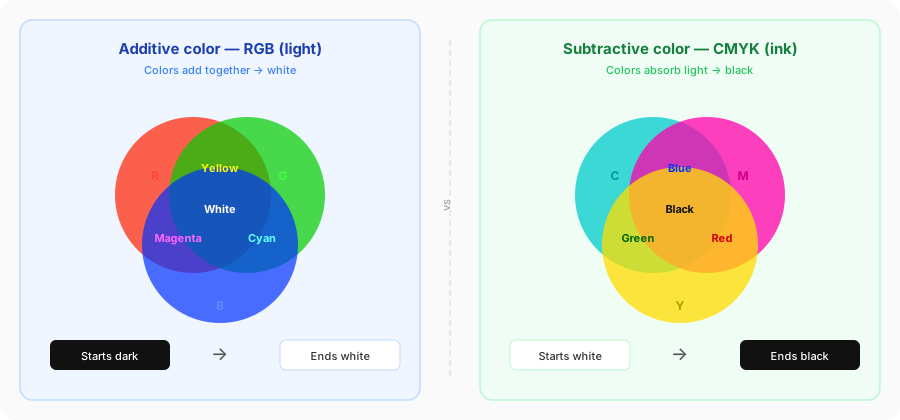
The fundamental difference between RGB and CMYK is what they're made of.
RGB is additive — it adds light. Screens (monitors, phones, TVs) produce colors by combining red, green, and blue light at varying intensities. When you combine all three at full intensity, you get white. When you combine none, you get black. This is called additive color because you're adding light to darkness.
CMYK is subtractive — it absorbs light. Printers produce colors by layering translucent inks (cyan, magenta, yellow, and black) on white paper. Each ink absorbs certain wavelengths of light and reflects others. Combining all inks absorbs most light, producing a dark color. This is called subtractive color because you're subtracting light from white.
Why K for black? In CMYK, K stands for "Key" — referring to the key printing plate in traditional four-color printing, which was always black. It's also sometimes explained as avoiding confusion with Blue in RGB, though the "Key" explanation is the historical one.
RGB: Everything Digital
| Property | Value |
|---|---|
| Channels | Red, Green, Blue |
| Range | 0–255 per channel |
| White | rgb(255, 255, 255) |
| Black | rgb(0, 0, 0) |
| Color gamut | Large — can display very saturated colors |
| Used for | Websites, apps, social media, video, digital photography |
RGB has a larger color gamut than CMYK — it can represent more colors, including highly saturated neons and vibrant hues that simply cannot be reproduced in ink. This is why things often look "better" on screen than in print.
When you design in Figma, Photoshop, or any other screen-based tool, you're working in RGB by default. HEX codes like #FF5733 are simply RGB values written in hexadecimal format.
CMYK: Everything Print
| Property | Value |
|---|---|
| Channels | Cyan, Magenta, Yellow, Key (Black) |
| Range | 0–100% per channel |
| White | C:0 M:0 Y:0 K:0 (paper shows through) |
| Black | C:0 M:0 Y:0 K:100 (or rich black: C:60 M:40 Y:40 K:100) |
| Color gamut | Smaller than RGB |
| Used for | Brochures, business cards, magazines, packaging, posters |
CMYK's gamut is smaller than RGB's — it cannot reproduce some very saturated digital colors. When you convert an RGB file to CMYK for print, colors may shift noticeably, particularly electric blues and bright greens.
Black in CMYK deserves special attention. Pure black (K:100) looks fine for text but can appear washed out for large black areas. Rich black (C:60 M:40 Y:40 K:100) uses all four inks for a deeper, denser black on press — but should never be used for small text as it causes misregistration issues.
Key Differences at a Glance
| RGB | CMYK | |
|---|---|---|
| Medium | Screens | |
| Color mixing | Additive (light) | Subtractive (ink) |
| Starting point | Black (no light) | White (blank paper) |
| Color gamut | Larger | Smaller |
| Max colors | 16.7 million | ~16,000 printable |
| White representation | rgb(255,255,255) | Absence of ink |
| File formats | JPEG, PNG, GIF, WebP | PDF, TIFF, EPS |
When to Use RGB
Use RGB when your deliverable will be viewed on a screen:
- Websites and web apps — all CSS colors are RGB/HEX
- Social media graphics — Instagram, LinkedIn, Twitter posts
- Email marketing — viewed on email clients and browsers
- Digital advertising — banner ads, display ads
- Video and motion graphics — all video is RGB
- Presentations — PowerPoint, Keynote, Google Slides
Most design software defaults to RGB. If you're creating only for digital output, you never need to think about CMYK.
When to Use CMYK
Use CMYK when your deliverable will be physically printed by a commercial printer:
- Business cards and stationery
- Brochures, flyers, and leaflets
- Magazines and editorial
- Packaging and product labels
- Large format print (banners, posters)
- Books and catalogs
Important: Always set up your document in CMYK from the start for print projects. Converting from RGB to CMYK at the end of your process often produces unexpected color shifts and may require significant redesign.
When to Use Pantone Instead
Both RGB and CMYK mix colors from components. Pantone takes a different approach — pre-mixed spot inks that don't depend on combining channels at all.
Use Pantone when:
- Color consistency is critical — brand colors that must match across multiple suppliers and countries
- You need colors outside CMYK's gamut — Pantone Metallics, fluorescent neons, and certain deep blues (like Pantone Reflex Blue) cannot be reproduced in CMYK
- You're printing on unusual substrates — textiles, plastics, metals
- Two-color print jobs — using two Pantone inks is often more economical than four-color CMYK
The typical professional workflow combines all three:
Design in RGB → Export CMYK for general print → Specify Pantone for brand colors
Converting Between RGB and CMYK
RGB to CMYK (Mathematical Formula)
R' = R / 255
G' = G / 255
B' = B / 255

K = 1 - max(R', G', B')
C = (1 - R' - K) / (1 - K)
M = (1 - G' - K) / (1 - K)
Y = (1 - B' - K) / (1 - K)
Multiply C, M, Y, K by 100 for percentage values.
This formula is approximate. Professional color management uses ICC profiles, not simple math. The formula above gives a reasonable starting point but won't match what a professional RIP (Raster Image Processor) or color management system produces. For critical print work, convert inside Photoshop or Illustrator with a proper output profile (e.g., Coated FOGRA39 for European print, SWOP for US print).
CMYK to RGB
R = 255 × (1 - C/100) × (1 - K/100)
G = 255 × (1 - M/100) × (1 - K/100)
B = 255 × (1 - Y/100) × (1 - K/100)
Finding the Pantone Equivalent
Once you have your CMYK or HEX value, use our converters to find the closest Pantone match:
The Problem with Converting Late
One of the most common workflow mistakes is designing an entire project in RGB and converting to CMYK at the end. Here's what goes wrong:
Vibrant blues shift purple or navy. RGB can produce electric blues (#0000FF) that CMYK simply cannot reproduce. On conversion, they become darker and duller.
Neons become muted. Highly saturated greens, oranges, and pinks in RGB often have no CMYK equivalent within gamut.
Blacks multiply. RGB black (#000000) converts to rich black CMYK, which can cause ink coverage issues and misregistration on text.
The fix: Set up your Photoshop or Illustrator document in CMYK from day one for any print project. If you must convert, do it early and adjust colors manually after the conversion.
Frequently Asked Questions
Related Tools
Beyond CMYK and RGB
CMYK and RGB are the two models most designers meet first, but they are both device models — they describe what a press lays down or what a screen emits, and both change meaning between devices. Two other models are worth knowing.
HSV, also called HSB, is a re-parameterisation of RGB built around how people actually pick colour: a hue, then how vivid and how bright. It is what sits behind the colour picker in Photoshop and Figma, and it is far easier to build tints and shades in than raw RGB. Working the other way, HSV to Pantone takes those picker values to a spot colour.
CIELAB is the opposite kind of model: device-independent by design, and the space every colour measurement and ΔE tolerance is actually calculated in. If you have ever wondered how anyone settles an argument about whether two colours match, the answer is CIELAB and a spectrophotometer — start from LAB to Pantone if you have a measurement in hand.
If you want all four models set out together — what each axis actually measures, where HSL and HSV disagree, and why LAB is the one matching is calculated in — start with colour spaces explained.
For fabric rather than paper, process printing has its own rules again — see Pantone Textile to CMYK for sublimation and direct-to-garment work.