A client sends a JPEG of their logo and no brand guideline. A supplier photographs a product and asks you to match the packaging. Someone screenshots a competitor's site and wants "that blue" on a print run.
The task looks trivial — eyedropper the pixel, look up the nearest Pantone — and the first part genuinely is. What makes it worth doing carefully is that the answer changes depending on which pixel you take and what the image has been through before it reached you. This covers both methods, what each is good for, and the specific mistakes that produce a confidently wrong number.
Why "Just Eyedropper It" Isn't Enough
A hex value pulled from an image is not the color of the object. It is the end of a chain, and every link has already moved it.
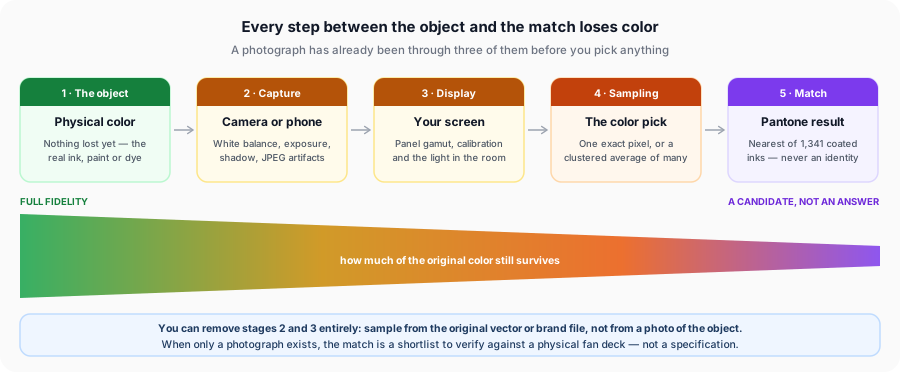
Three things do most of the damage:
The camera made decisions for you. Auto white balance guesses the light source and shifts everything to compensate. Exposure moves the whole image up or down. A photograph of a red box under warm indoor light and the same box in daylight produce genuinely different hex values, and neither is the box.
JPEG threw information away. JPEG compresses color more aggressively than brightness, because eyes notice brightness more. On flat areas that is usually invisible; along hard edges — exactly where a logo lives — it produces fringing and blocking. Sample two pixels a few apart near a letterform edge and you can get visibly different values from what should be one solid color.
Your screen is showing you an interpretation. An uncalibrated panel can be noticeably off, and the room's lighting changes how you read it. This matters less than people assume for sampling — the numeric value in the file is what gets sampled, not what your screen shows — but it matters enormously for judging whether a returned match looks right.
If you have any route to the original vector file, brand guideline or design source, use it. Sampling a logo from an SVG or a brand PDF skips the camera and the compression entirely, and it is the single biggest accuracy improvement available. If you are new to how Pantone works at all, our guide to what Pantone is explains why an exact match was never on the table.
Method 1: Upload and Auto-Match
The image to Pantone tool does the extraction for you. Drag an image in — JPEG, PNG, WebP or GIF, up to 10 MB — and it works entirely in your browser. Nothing is uploaded to a server, which matters when the file is an unreleased logo under NDA.
What happens next is worth understanding, because it determines which of the two results you should trust.
The dominant palette. The tool reads every pixel of a copy scaled to 800 pixels on the long edge, groups similar colors into buckets, averages the pixels in each bucket, merges groups that are nearly identical, and returns up to eight as an extracted palette, each with its closest Pantone match and a coated/uncoated toggle. The same image always gives the same palette. Transparent pixels are skipped, so a PNG logo on transparency gives you the mark's colors rather than a phantom background.
Picking a color. Click or tap anywhere on the preview and it reads that spot at full resolution, averaging a 3 × 3 pixel patch to smooth out compression noise, and lists the five closest Pantone matches. A magnifier shows exactly which pixels you are on.
For a specific brand color, pick it on the image. Do not read it off the dominant palette. The palette groups similar pixels into buckets — which is what makes a "dominant" color possible at all, since a photo holds thousands of near-unique values. Each palette color is the average of its group: exact for a perfectly flat area, but a blend of neighboring shades in a photo, a gradient or a compressed edge.
That does not make the palette wrong. It answers a different question: what colors is this image built from? That is the right tool for pulling a scheme out of a photograph or a moodboard. For what exactly is this brand's blue?, pick it on the image.
Method 2: Manual Color Picker + PMS Color Browser
If your value came from somewhere else — a brand guideline, a CSS file, a design token, a colleague's email — you do not need the image at all. Go straight to the PMS Color Browser and search the library directly, or use the HEX to Pantone converter if you have a hex code in hand.
This route is strictly more accurate than sampling, because a value someone typed into a brand document has not been through a camera or a compressor. A published #0071E3 is the color; a pixel that reads #0071E3 merely resembles it.
It is also the right route when you need to check a match rather than find one. If the guideline names a Pantone number and a hex, run the hex and see whether the tool agrees. When it does not, that usually means the brand's own hex is an approximation of the ink rather than a measurement of it — extremely common, and worth knowing before you argue with a printer about it.
Comparing Multiple Extracted Colors Side by Side
Most logos are not one color. Once you have two or three candidates, the side-by-side comparison tool gives you the ΔE*00 difference between any two Pantone colors, which answers questions the individual matches cannot.
Three cases where it earns its place:
- Two sampled regions returned different Pantone numbers. Are they genuinely two brand colors, or one color the compression split in two? A ΔE under about 2 between the two matches strongly suggests one color.
- Your match disagrees with the brand's stated Pantone. Compare the two numbers directly. A small ΔE means you are arguing over nothing; a large one means something is actually wrong with the source.
- You are choosing between the top candidates. Comparing them against each other builds a feel for what a given ΔE looks like, which is what makes the number useful rather than decorative.
Common Mistakes That Cause Inaccurate Image-Based Matches
| Mistake | Why It Happens | How to Avoid It |
|---|---|---|
| Sampling from a photo when a source file exists | The photo is what got emailed, so it is what gets used | Ask for the vector, brand PDF or original export — it removes two whole error stages |
| Trusting an uncalibrated screen | Panels ship with saturated factory profiles; ambient light shifts perception | Judge the number, not the swatch. Calibrate if you assess color often |
| Picking a pixel near an edge | JPEG artifacts and anti-aliasing blend the logo into its background | Sample from the middle of a large flat area of the color |
| Reading a brand color off the dominant palette | It looks like the authoritative answer and sits right at the top | Pick the color on the image instead — each palette color is the average of a group of similar pixels |
| Mixed or colored lighting in a product photo | Warm bulbs, colored bounce and shadow all tint the surface | Shoot or request a flat, evenly lit image; avoid anything in shadow |
| Working from a small or upscaled image | A thumbnail or a scaled-up screenshot has few genuine pixels left | Use the largest original available; upscaling invents color, it does not recover it |
| Ignoring coated vs uncoated | The tool defaults to one collection and it is easy not to notice | Set the toggle to match the stock you are printing on |
Best Practices for Getting the Most Accurate Match From a Photo
Start as far up the chain as you can. Vector source beats PNG export beats photograph. Every stage you skip is error you never have to reason about.
Sample the middle of a flat region. Large uniform areas are where compression does least harm. Avoid gradients, highlights, shadows, and anything within a few pixels of an edge. The picker reads the full-resolution image and averages a 3 × 3 pixel patch, so a pick right next to an edge still blends in some of the neighboring color — another reason to pick well inside the area.
Take several samples and look for agreement. Click three or four points across the same flat area. If they return the same Pantone, you have a reliable read. If they scatter, the image is not good enough to answer the question and you should say so rather than pick one.
Set the collection before you record the answer. Coated and uncoated are different inks on different stock, and the same sampled color resolves differently in each.
Treat the result as a shortlist. The honest output of this process is two or three candidates to check against a physical fan deck under proper light. That is not a limitation of the tool — it is what color matching from an image can support.
Never send an image-derived Pantone number to production as a specification without verifying it. If the color is brand-critical and no guideline exists, ask the client for their brand documentation. Someone has it, and thirty seconds of asking beats a reprint.
Frequently Asked Questions
Related Tools
Upload a logo or photo and extract its colors as Pantone matches.
Search our reference set of PMS color approximations directly by name or number.
Get the ΔE*00 difference between any two Pantone colors.
Already have a hex code? Go straight to the closest PMS match.
Match an RGB triplet from a picker or design file.
Reference Pantone, HEX and CMYK values for well-known brands.
Find the Pantone color in your image
Drop in a logo or photo and pick the exact spot you need. Runs entirely in your browser — nothing is uploaded.